
Split and Merge Orders
Splitting and Merging Orders
Order Dispatch allows you to split a single order into multiple orders or merge multiple orders into one.
These tools are useful when an order needs to be fulfilled in separate parts, or when multiple matching orders can be combined into a single shipment.
Common reasons for using these features include:
- separating in-stock and out-of-stock items
- reducing the number of SKUs or items in each shipment
- making large orders easier to pick and pack
- combining multiple orders going to the same customer
- reducing shipping costs
- creating clearer, more manageable fulfilment workflows
Splitting Orders
Splitting an order creates one or more new orders from the original order.
This is useful when part of an order needs to be shipped separately, or when you want to break a large order into smaller, more practical shipments.
Typical reasons to split an order
You might split an order when:
- some items are out of stock and the available items should be shipped now
- a large order needs to be divided into smaller shipments
- you want to limit the number of SKUs or items in each parcel
- different parts of the order need different fulfilment handling
- the order is too large or complex for a single pick/pack workflow
How to Split an Order
- In the Open Orders grid, select the order you want to split.
- Click the Actions menu (spanner icon, bottom left).
- Select Split Order.
- Decide whether you want to split the order automatically or manually.
- When you are finished, click Save Split Orders.
Automatic Split Options
Order Dispatch includes several automatic split methods to help divide orders quickly according to common rules. For each option below, choose the relevant value in the drop down box, and enter a number if required.
1. Stock Availability
This option splits out-of-stock items into a new order.
The system will keep the available items on one order and move the unavailable items to a separate order.
Example use case
A customer orders 5 items, but only 3 are currently in stock. You want to ship the available items immediately and hold the remaining 2 until stock arrives. Using Stock Availability, Order Dispatch creates a separate order for the out-of-stock items.
Why this is useful
- allows partial shipment without editing the order manually
- helps improve dispatch speed
- makes backorders easier to manage
- keeps unavailable items separate from ready-to-ship items
2. Max SKU Per Order
This option limits the number of distinct SKUs in each split order.
A SKU means a unique product line, regardless of quantity.
For example, an order containing:
- 2 × SKU-A
- 1 × SKU-B
- 3 × SKU-C
contains 3 distinct SKUs.
If you enter a maximum of 2 SKUs per order, the system will split the order so that no split order contains more than 2 distinct SKUs.
Example use case
You may want to limit each order to a small number of product lines to simplify picking, packing, or labelling. This can be especially useful in warehouses where complex multi-line orders take significantly longer to process.
Why this is useful
- makes picking simpler
- reduces complexity for packers
- helps divide large mixed-product orders into manageable shipments
- can improve fulfilment speed for high-line-count orders
3. Max Items Per Order
This option limits the total number of items in each split order.
This counts item quantities, not just distinct SKUs.
For example, an order containing:
- 5 × SKU-A
- 3 × SKU-B
contains 8 items in total.
If you enter a maximum of 4 items per order, the system will split the order into multiple smaller orders so that each contains no more than 4 items.
Example use case
This can be useful where your packing process works best with smaller parcel sizes, or where very large item counts make orders slow or awkward to process. For example, if an order contains 20 low-value units, you may want to split it into smaller shipments for easier handling.
Why this is useful
- helps control parcel size
- supports operational limits in packing areas
- makes very large quantity orders easier to fulfil
- can help balance work across multiple shipments
Manual Split
Manual split gives you full control over how the order is divided.
How manual split works
- Open the order using Split Order from the Actions menu.
- Click Create New Order to create an empty split order.
- Drag and drop the items you want to move into the new order.
- If you want to split the order into more than two parts, click Create New Order again.
- Continue moving items until the split is arranged as required.
- Click Save Split Orders when finished.
Example use case
A customer places one order containing fragile items, standard items, and items that need to be resent. Rather than relying on an automatic rule, you may want to manually group the items into the exact shipments you want.
Why this is useful
- gives full control over the final split
- helpful for unusual or one-off scenarios
- useful when business logic cannot easily be captured by an automatic rule
- allows the operator to make practical fulfilment decisions based on experience
Important Notes About Splitting
- The split is not final until you click Save Split Orders.
- Automatic split is best for standard repeatable scenarios.
- Manual split is best when you need more control.
- Splitting can create multiple related orders from the original, making each part easier to manage separately.
Merging Orders
Merging orders allows you to combine two or more existing orders into a single new order.
This is most useful when the same customer has placed multiple separate orders that are going to the same address and can be shipped together.
Typical reasons to merge orders
You might merge orders when:
- a customer places multiple orders close together
- you want to reduce shipping costs
- multiple orders for the same customer can go in one parcel
- you want to simplify picking and packing
- separate orders were created in error but should be fulfilled together
How to Merge Orders
- In the Open Orders grid, select one order you would like to merge.
- Click the Actions menu (spanner icon, bottom left).
- Select Merge.
- Order Dispatch will show any matching orders available to merge with.
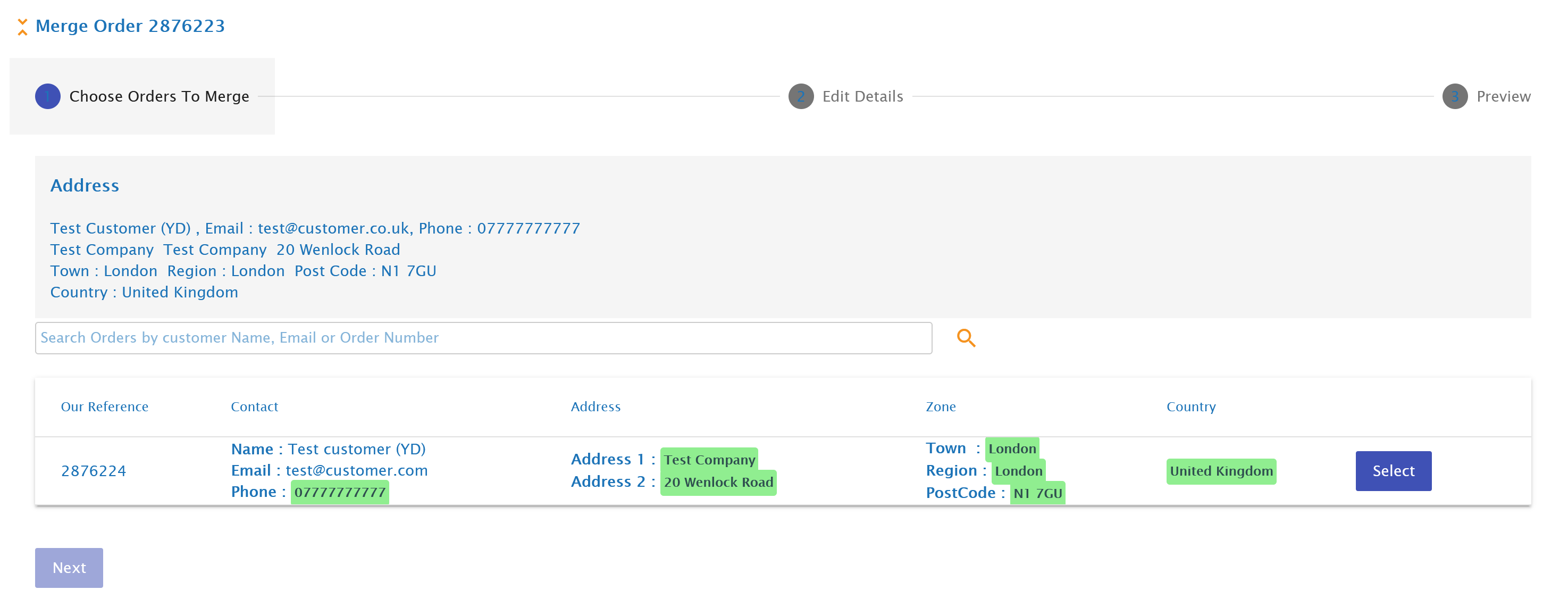
Only orders with a matching delivery address can be merged. This is a safety feature to help prevent accidental merging of unrelated customer orders.
- Select one or more orders to merge with, then click Next.
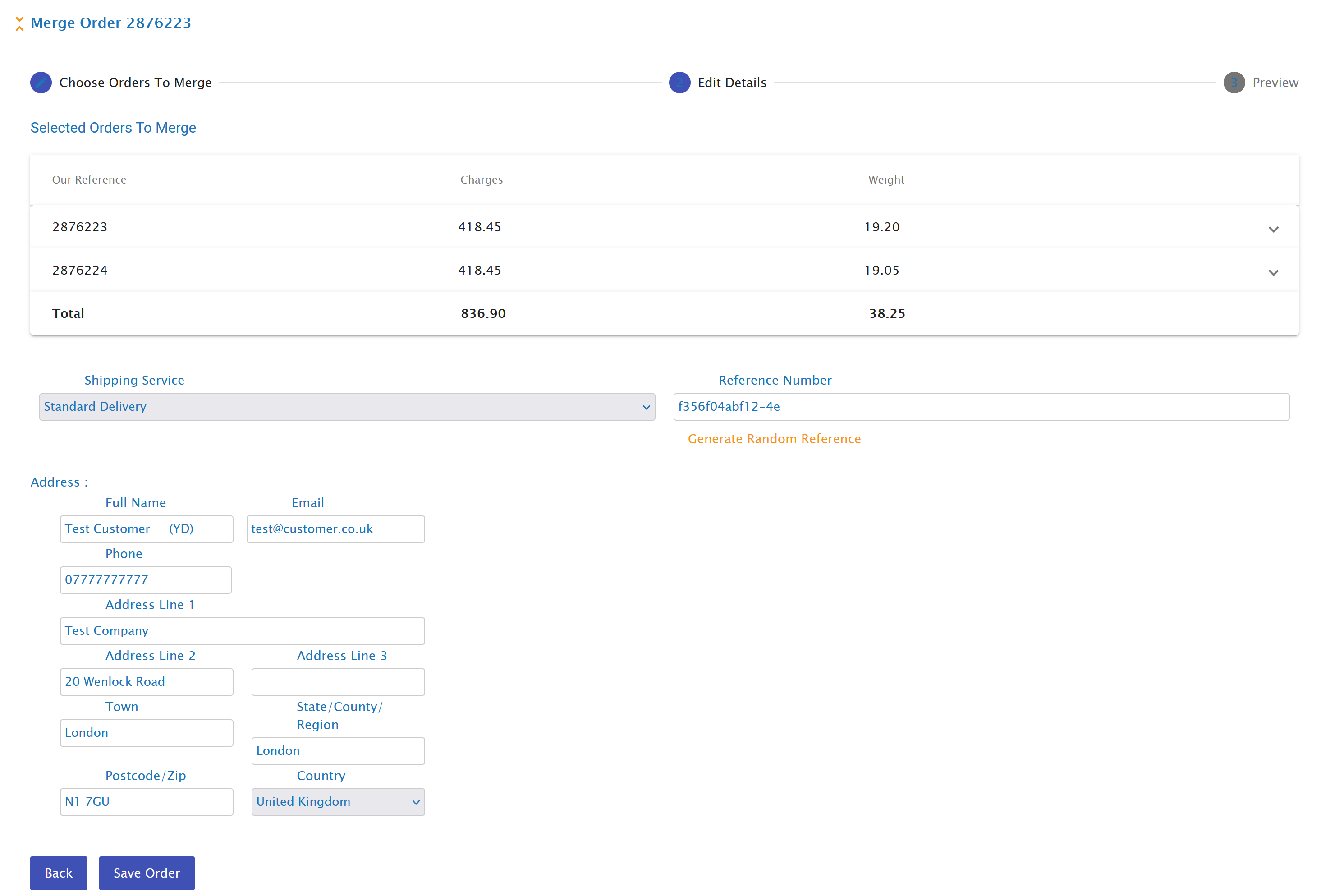
- Choose a new shipping service for the merged order.
- Enter a reference for the merged order, or click the button to generate a random reference.
- Review the summary table and make any final corrections to the address if required.
- Click Save.
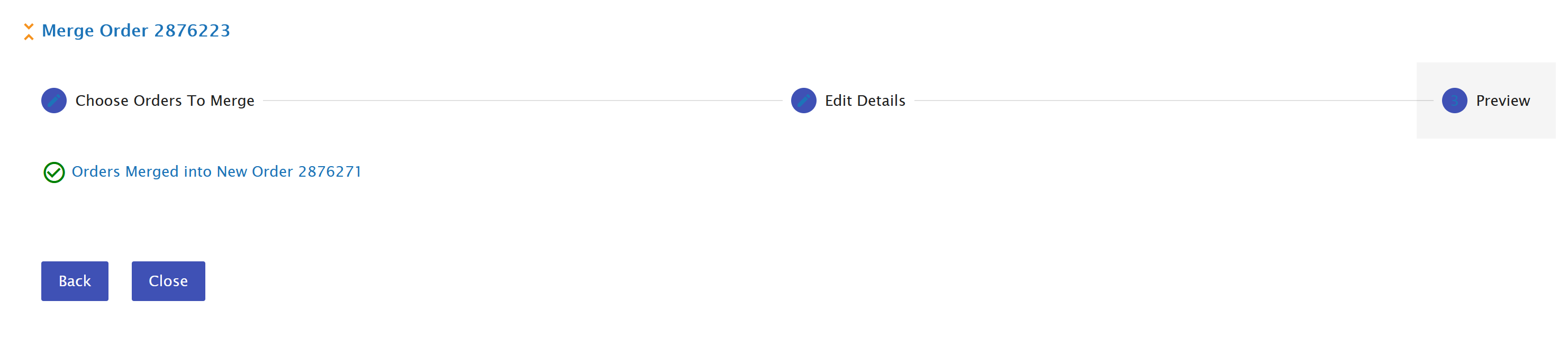
Order Dispatch will then create a new order containing the combined contents of the selected orders.
Why Matching Addresses Are Required
For safety, Order Dispatch only allows merging when the delivery addresses match.
This helps prevent accidental merging of orders that belong to different customers.
If you intentionally need to merge orders where the addresses do not currently match, you will first need to edit one of the addresses so they are the same.
This should only be done when you are certain the orders should be combined.
Choosing the Shipping Service and Reference
During the merge process, you can choose a new shipping service and define the reference for the new merged order.
This is important because:
- the merged order may now have a different total weight or size
- the original service may no longer be suitable
- you may want a clearer reference for the newly combined shipment
Example
Two separate orders may originally have been small enough for letter-sized shipping, but once merged, the combined parcel may require a tracked parcel service instead.
Example Use Cases for Merging
Customer placed two orders
A customer places an order in the morning, then places another later the same day to the same address. Instead of shipping both separately, you can merge them into one shipment.
Reducing shipping cost
If multiple orders are going to the same destination, merging them can reduce carriage cost and packaging use.
Simplifying fulfilment
Instead of picking and packing several small orders for the same address, your team can process a single combined order.
Cleaning up duplicate or split ordering behaviour
Some customers place separate orders for related items instead of putting everything into one basket. Merging lets you treat them as a single fulfilment job.
Important Notes About Merging
- Only matching addresses can be merged.
- The merged result is created as a new order.
- Always check the shipping service after merging, as the parcel requirements may have changed.
- Review the summary carefully before saving to make sure the merged order is correct.
Splitting vs Merging: When to Use Each
Use Split Order when one order needs to become multiple shipments.
Use Merge Order when multiple orders should become one shipment.
Split examples
- separate out-of-stock items
- limit order complexity
- divide a large order into smaller shipments
Merge examples
- combine same-address orders
- reduce shipping costs
- simplify warehouse handling
Best Practice Tips
- Use automatic split options for standard operational rules.
- Use manual split when the order needs human judgement.
- Double-check shipping services after splitting or merging.
- Review address details carefully when merging.
- Use clear references on merged orders so the fulfilment team can understand the change.