
Importing Orders Using CSV or Excel
When to Use Order Import
You might use the import feature when:
- importing orders from a system that is not directly integrated with Order Dispatch
- bulk uploading orders from a marketplace or third-party platform
- migrating orders from another system
- manually creating large numbers of orders quickly
- testing or onboarding a new client with sample data
How to Import Orders
- Go to Orders → Create Order
- Click Using CSV/Excel File Upload
- Select your file and upload it
- Map the fields (if required)
- Click Next to preview the import
- Click Save to begin importing
Using the Template (Recommended)
We recommend using the provided Order Import Template wherever possible.
Using the template ensures:
- all required fields are included
- the format is correct
- minimal mapping is required
- fewer import errors
If you are not using the template, you will need to manually map your file fields to the required Order Dispatch fields.
Step 1: Upload Your File
After selecting your file, Order Dispatch will read the structure and move you to the field mapping screen.
Your file can contain:
- a single order
- multiple orders
- multiple lines per order (for multiple items)
Step 2: Map Your Fields
When uploading a custom file, you will need to map your file columns to the Order Dispatch fields.
Understanding the Mapping Screen
The screen is divided into three main sections:
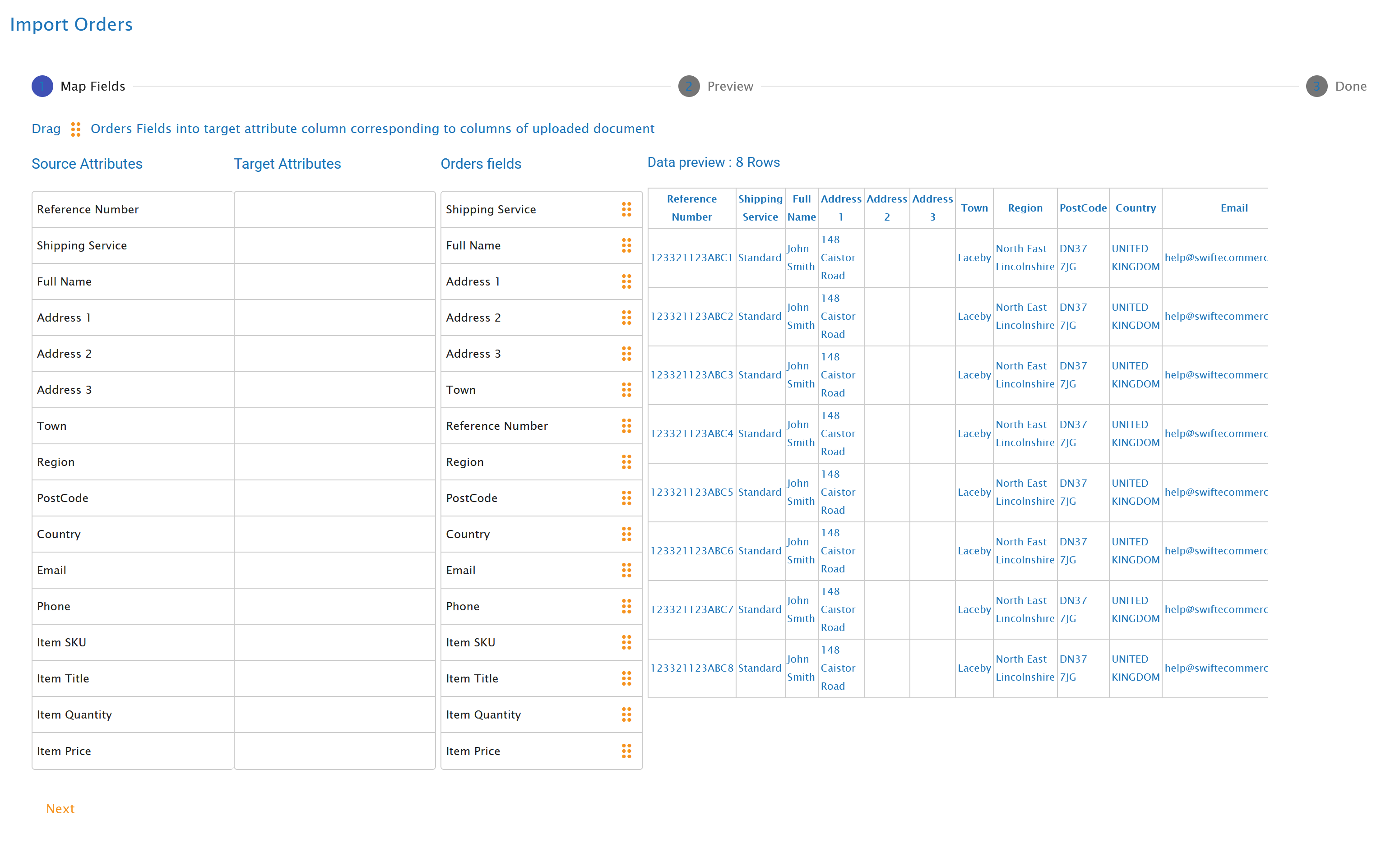
Source Attributes (Left)
These are the column headers from your uploaded file.
Example:
- name
- country
- address line 1
Target Attributes (Middle)
This is where you assign the Order Dispatch fields to your file columns.
You will drag fields here to create the mapping.
Order Fields (Right / Middle List)
These are the available Order Dispatch fields that can be mapped.
Examples include:
- Reference Number
- Full Name
- Address 1
- Town
- Postcode
- Item SKU
- Item Quantity
- Item Price
Data Preview (Right Side)
You will see a preview of the first 10 rows of your file.
This helps you:
- confirm which column contains which data
- avoid mapping errors
- quickly identify formatting issues
How to Map Fields
To map a field:
- Drag a field from Order Fields
- Drop it onto the matching column in Target Attributes
Example
If your file contains a column called sku:
- Drag Item SKU from Order Fields
- Drop it onto the
skucolumn
Mapping is Saved Automatically
Once you map fields for a file format, Order Dispatch will remember the mapping for future uploads of the same format.
This means:
- you only need to map fields once
- future uploads will be faster and easier
Step 3: Preview the Import
After clicking Next, you will see a preview of the orders to be imported.
At this stage, you can:
- review the data for accuracy
- confirm fields are mapped correctly
- check for any obvious issues
You can also enter an email address to receive an import processing report once the upload is complete.
Step 4: Import the Orders
Click Save to begin the import.
Order Dispatch will:
- process the file
- group rows into orders
- create the orders in the system
How Orders Are Structured in the File
Your file can contain multiple rows per order.
Key Rule: Order Reference Groups Items
- Each order is identified by its Reference Number
- All rows with the same reference are grouped into a single order
- Each row represents one item line
Example Structure
Reference | Name | SKU | Quantity |
|---|---|---|---|
ORD001 | John Smith | SKU-A | 2 |
ORD001 | John Smith | SKU-B | 1 |
ORD002 | Jane Doe | SKU-C | 3 |
This will create:
- 1 order (ORD001) with 2 items
- 1 order (ORD002) with 1 item
Important Formatting Rules
To ensure successful import:
- Do not leave blank rows between data
- Ensure all rows for an order have:
- reference
- name
- address
- Avoid empty cells in required fields
- Keep formatting consistent across rows
- Make sure each order has a unique reference
If these rules are not followed, orders may fail to import or be grouped incorrectly.
Common Use Cases
Bulk Upload from Marketplace Export
Export orders from a marketplace and import them into Order Dispatch for fulfilment.
Manual Order Creation at Scale
Instead of creating orders one by one, prepare a spreadsheet and upload all orders at once.
Migration from Another System
When onboarding a new client, import historical or pending orders from their previous system.
Custom Integrations
If a system cannot integrate via API, it can output a CSV file for scheduled or manual import.
Troubleshooting & Tips
- Always test with a small file first
- Use the preview screen to catch errors early
- Double-check SKU and quantity mappings
- Ensure references are consistent across rows
- Save your file in CSV format if Excel causes formatting issues
Related Article
For more guidance on preparing files correctly, see:
👉 https://www.docs.orderdispatch.co.uk/en/article/tips-on-using-csv-files
Best Practice Tips
- Use the template whenever possible
- Keep column names consistent across files
- Avoid unnecessary columns
- Validate your data before uploading
- Reuse saved mappings for repeat imports