
Configuring Shipping Service Settings and Rules
By default, Order Dispatch evaluates the available shipping services for each order and selects the cheapest valid option. It considers factors such as:
- destination country and postcode
- parcel weight
- order value
- service restrictions
- the shipping services enabled on the account
Shipping service rules let you narrow the services considered for particular orders. This is useful where certain products, destinations, customers or order types must be sent using a particular courier or group of services.
Opening Shipping Service Settings
Go to:
Settings → Shipping Service Settings
The page has two main sections:
- Allowed Services
- Shipping Service Conditions
How Shipping Service Selection Works
Before configuring the page, it is important to understand how Order Dispatch selects a service.
Order Dispatch does not simply assign the first available service. It builds a list of services that are permitted for the order, checks which of them can handle the shipment, and then selects the cheapest valid option.
A service might be unsuitable because of:
- the parcel being too heavy
- the destination being unsupported
- postcode restrictions
- maximum order-value limits
- service-specific size or weight limits
- other carrier restrictions
Shipping service rules act as a filter. They create a list of acceptable services for matching orders, after which Order Dispatch returns to its normal behaviour and selects the cheapest valid service from that list.
Example
A rule might return:
- DPD Next Day
- DHL Parcel UK Next Day
Order Dispatch will check whether both services can carry the order and will select the cheapest valid option.
Where a rule contains only one service, Order Dispatch will check whether that service is valid for the order. The rule does not bypass the service’s weight, destination or other restrictions.
Allowed Services
The Allowed Services section controls which shipping services Order Dispatch may use automatically.
Each courier can be expanded to show its available services. The switches can then be used to activate or deactivate individual options.
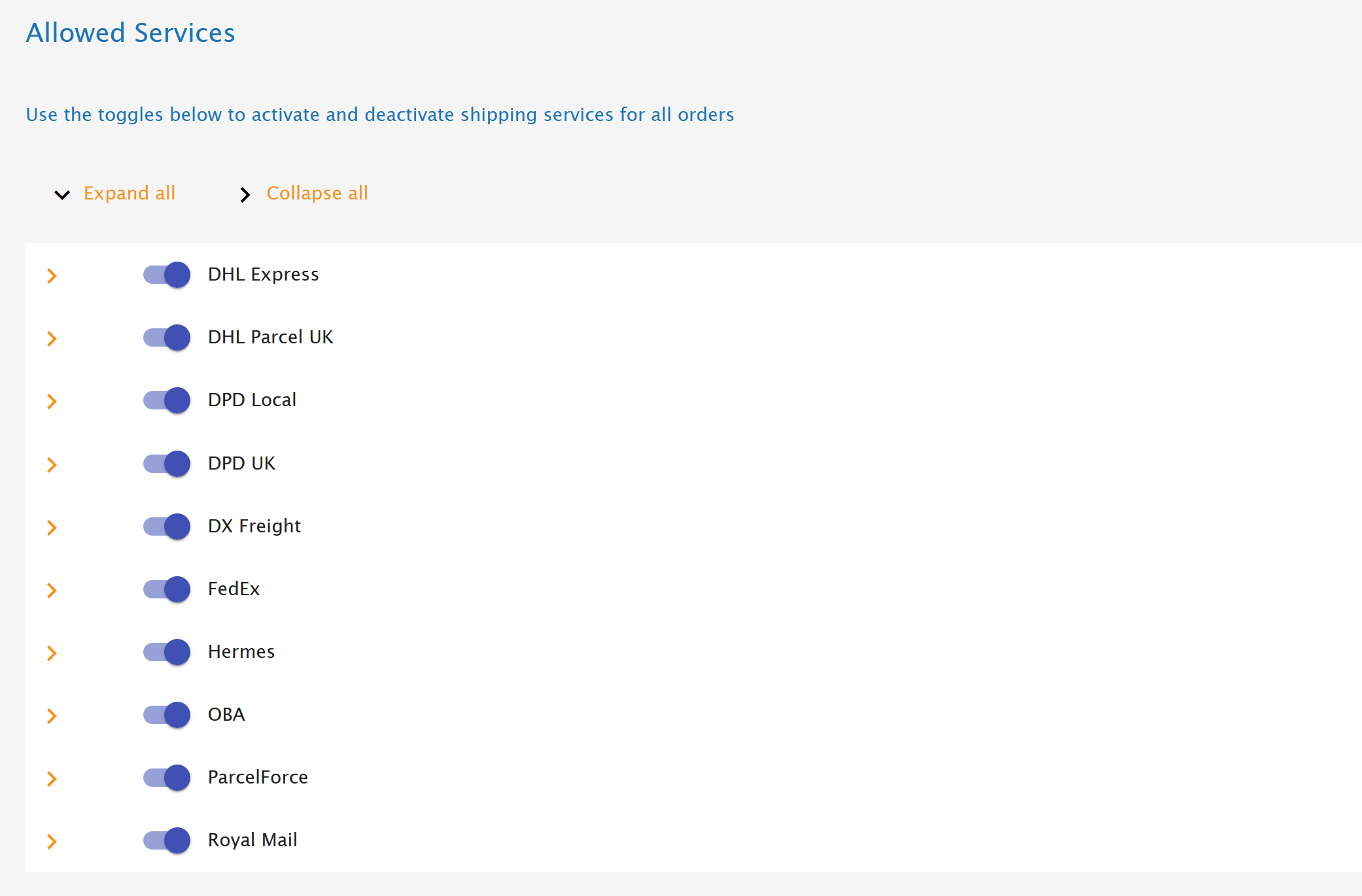
Turning a service on or off
To change whether a service can be used:
- Find the courier in the Allowed Services list.
- Expand the courier if necessary.
- Use the switch beside the required service.
- Leave the service switched on if Order Dispatch should be able to select it automatically.
- Switch it off if it should be excluded from all automatic selection.
The Expand all and Collapse all controls can be used to open or close every courier section.
What happens when a service is switched off?
A switched-off service:
- will not be selected by the normal automatic shipping calculation
- cannot be used as the result of a shipping service rule
- can still be selected manually by a user from within Order Dispatch
This makes it possible to keep a specialist or rarely used service available for exceptional manual use without allowing the system to assign it automatically.
Do not disable too many services
It is important to leave enough services enabled to cover the different orders you expect to receive.
For example, if every service except Royal Mail is disabled and the available Royal Mail service has a maximum weight of 2 kg, Order Dispatch will not be able to assign a service to an order weighing more than 2 kg.
The order will be left with No assigned shipping service and will appear in grey on the Open Orders screen. A user will then need to investigate and assign a suitable service manually.
When reviewing the allowed services, consider whether you have coverage for:
- lightweight and heavy parcels
- UK and international destinations
- remote or restricted postcodes
- high-value orders
- oversized parcels
- next-day and economy delivery requirements
Shipping Service Conditions
The Shipping Service Conditions section allows you to create rule sets that restrict the automatic service selection for matching orders.
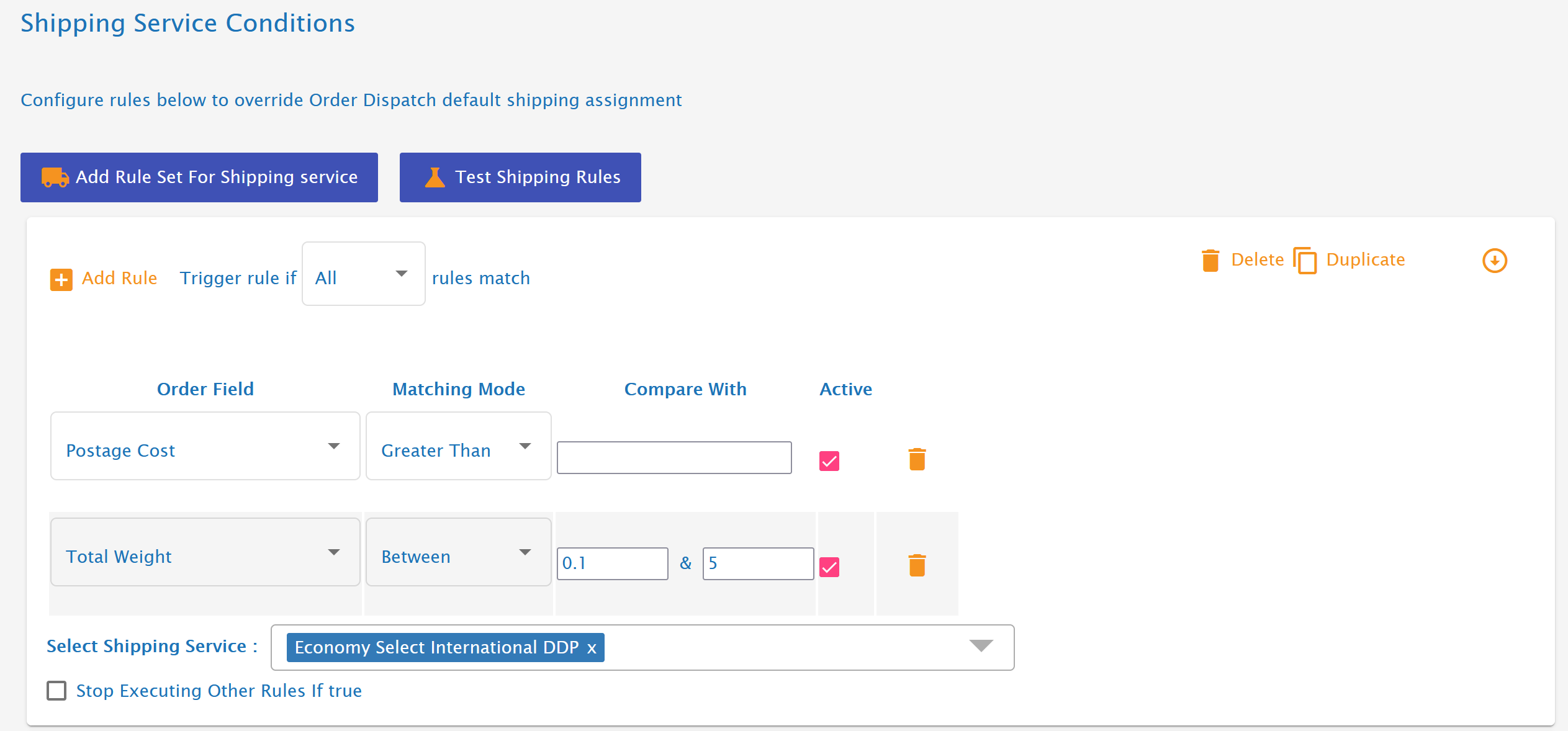
A rule set contains:
- one or more conditions
- a choice between matching All or Any conditions
- one or more resulting shipping services
- an optional instruction to stop processing later rule sets
You can create multiple rule sets on the account.
Creating a rule set
- Click Add Rule Set For Shipping Service.
- Choose whether the rule should trigger when All or Any conditions match.
- Click Add Rule to add a condition.
- Select the relevant Order Field.
- Choose the Matching Mode.
- Enter or select the value to compare against.
- Add more rules where required.
- Under Select Shipping Service, choose one or more services.
- Decide whether to enable Stop Executing Other Rules If True.
- Position the rule set in the required order using the arrows at the side.
Matching All or Any Conditions
Each rule set can use either All or Any logic.
All conditions
When All is selected, every active condition in the rule set must be true.
This is equivalent to AND logic.
Example
- Country is United Kingdom
AND - Total Weight is between 2 kg and 20 kg
The rule will only match UK orders within that weight range.
A UK order weighing 1 kg would not match. An order weighing 10 kg going to France would also not match.
Any conditions
When Any is selected, only one of the active conditions needs to be true.
This is equivalent to OR logic.
Example
- Postcode starts with
BT
OR - Postcode starts with
IM
OR - Postcode starts with
GY
The rule will match an order going to any of those postcode areas.
Available Order Fields
Shipping rules can use the following order information:
Order field | Example use |
|---|---|
Address 1 | Identify an address containing a particular building or location |
Address 2 | Match additional address information |
Company | Route orders for a particular business customer |
Country | Select one or more destination countries |
Country Code | Match destinations using a country code |
Currency | Use different services for GBP, EUR or USD orders |
Full Name | Match a named recipient where required |
Item SKU | Use a specialist service when an order contains a particular product |
Packaging | Route orders using a particular packaging type |
Post Code | Handle remote areas or special postcode zones |
Postage Cost | Compare against the delivery amount paid by the customer |
Region | Match a county, state or destination region |
Shipping Service | Check the service originally assigned to the order |
Source | Match the sales platform, such as Amazon, eBay or Shopify |
SubSource | Match a particular store or account within a source |
Supplier | Apply routing for products or orders associated with a supplier |
Total Charge | Compare against the total amount paid by the customer |
Total Number Of Order Items | Route large or small multi-item orders differently |
Total Stock Cost | Compare against the internal stock cost of the order |
Total Weight | Apply different services according to shipment weight |
Matching Modes
The available matching modes depend on the type of field selected.
Text fields
Text-based fields can use:
- Equals
- Not Equals
- Contains
- Starts With
- Ends With
Examples
- Source Equals
Shopify - SubSource Equals
ACME UK Shopify - Post Code Starts With
BT - Address 1 Contains
British Forces - Item SKU Starts With
FRAGILE-
Use Equals where the entire value should match exactly. Use Contains, Starts With or Ends With where only part of the value is important.
Numerical fields
Numerical fields can use:
- Equals
- Between
- Less Than
- Greater Than
Examples
- Total Weight Between
2and20 - Total Charge Greater Than
100 - Total Number Of Order Items Greater Than
10 - Postage Cost Less Than
5
Check which unit is used by the field before creating the rule. For example, confirm that the weight values match the weight unit used on the account.
Country fields
The Country field uses:
- In
- Not In
A list of countries is provided, allowing you to select one or more destinations without typing their names manually.
Examples
- Country In France, Germany, Spain and Italy
- Country Not In United Kingdom
- Country In United States and Canada
This reduces spelling differences and makes country-based rules more reliable.
Selecting the Resulting Shipping Services
Under Select Shipping Service, choose one or more services that should be considered when the rule set matches.
These services form a list of permitted options. Order Dispatch will then evaluate the list and select the cheapest service that can handle the order.
Selecting one service
Where only one service is selected, the rule effectively says:
Use this service, provided that it is valid for the order.
For example, a rule may return DPD Next Day. Order Dispatch will still check whether DPD Next Day supports the destination, parcel weight and other order details.
Selecting multiple services
Where several services are selected, the rule says:
Choose the cheapest valid service from this group.
For example:
- DPD Next Day
- DHL Parcel UK Next Day
- Royal Mail Tracked 24
Order Dispatch will compare the valid services and select the cheapest one.
This is useful where several services provide an acceptable delivery level and the lowest-cost option should be used.
Use only genuinely acceptable services
Do not include a service merely because it is inexpensive. Every service selected in the rule should be suitable for the intended orders.
For example, where a customer has paid for a premium next-day service, the rule should contain only acceptable premium services. Adding an economy option could cause Order Dispatch to choose it because it is cheaper.
Multiple Matching Rule Sets
Rule sets are evaluated from top to bottom.
When a rule set matches, its selected services are added to the list of matched services. Order Dispatch then continues evaluating the remaining rule sets unless it encounters a matching rule set with Stop Executing Other Rules If True enabled.
If several rule sets match, services from each matching rule set are combined.
Order Dispatch then chooses the cheapest valid service from the combined list.
Example
The first matching rule returns:
- DPD Next Day
- DHL Parcel UK Next Day
A later matching rule returns:
- Royal Mail Tracked 24
The final candidate list contains all three services. Order Dispatch will select the cheapest one that can carry the order.
Rule Order and Priority
The order of the rule sets matters.
Use the arrows beside each rule set to move it up or down. More specific and important rules should generally appear above broader rules.
A sensible structure might be:
- exceptional or mandatory routing rules
- customer-specific rules
- product-specific rules
- destination rules
- general economy rules
This helps prevent broad rules from contributing services that are unsuitable for more specific scenarios.
Stop Executing Other Rules If True
Enable Stop Executing Other Rules If True when a matching rule set should prevent any lower rule sets from being evaluated.
Processing stops at that point. Rules above it have already been evaluated, but rules below it will not run.
This can be used to create an escape or priority route for exceptional orders.
Example
Rule set 1:
- Item SKU contains
HAZ - Result: specialist approved service
- Stop Executing Other Rules If True enabled
Rule set 2:
- Country is United Kingdom
- Result: Royal Mail Tracked 24 and DPD Next Day
If an order contains the hazardous-goods SKU, the first rule matches and processing stops. The general UK services in rule set 2 are never added to the candidate list.
Without the stop option, the services from both rules could be combined, allowing Order Dispatch to select a cheaper but unsuitable general service.
Activating, Deactivating and Deleting Rules
Each condition within a rule set has an Active checkbox.
Clear the checkbox to temporarily disable the condition without deleting it. This is useful when:
- testing a modified rule
- temporarily suspending a routing requirement
- preparing a rule before it becomes operational
- troubleshooting unexpected service selection
A rule can also be permanently removed using the delete icon on its row.
Rule sets can be deleted using the Delete option at the top of the rule set.
The Duplicate option can be used to copy an existing rule set. This is useful when creating a similar rule for another country, store, service or weight range.
Always review a duplicated rule carefully before relying on it.
When Shipping Rules Are Applied
Shipping rules are applied when an order first enters Order Dispatch.
This includes orders created through:
- connected sales channels
- CSV or Excel imports
- API integrations
- manual order creation
- other supported order-entry methods
A resend is treated as a new order and will therefore be evaluated again.
After the order has been created, subsequent changes do not automatically rerun the shipping rules. Changes to the address, weight, items or other order information must be handled manually where they affect the selected shipping service.
For example, if the order weight is corrected after import and the original service is no longer suitable, a user should review and manually update the shipping service.
Testing Shipping Service Rules
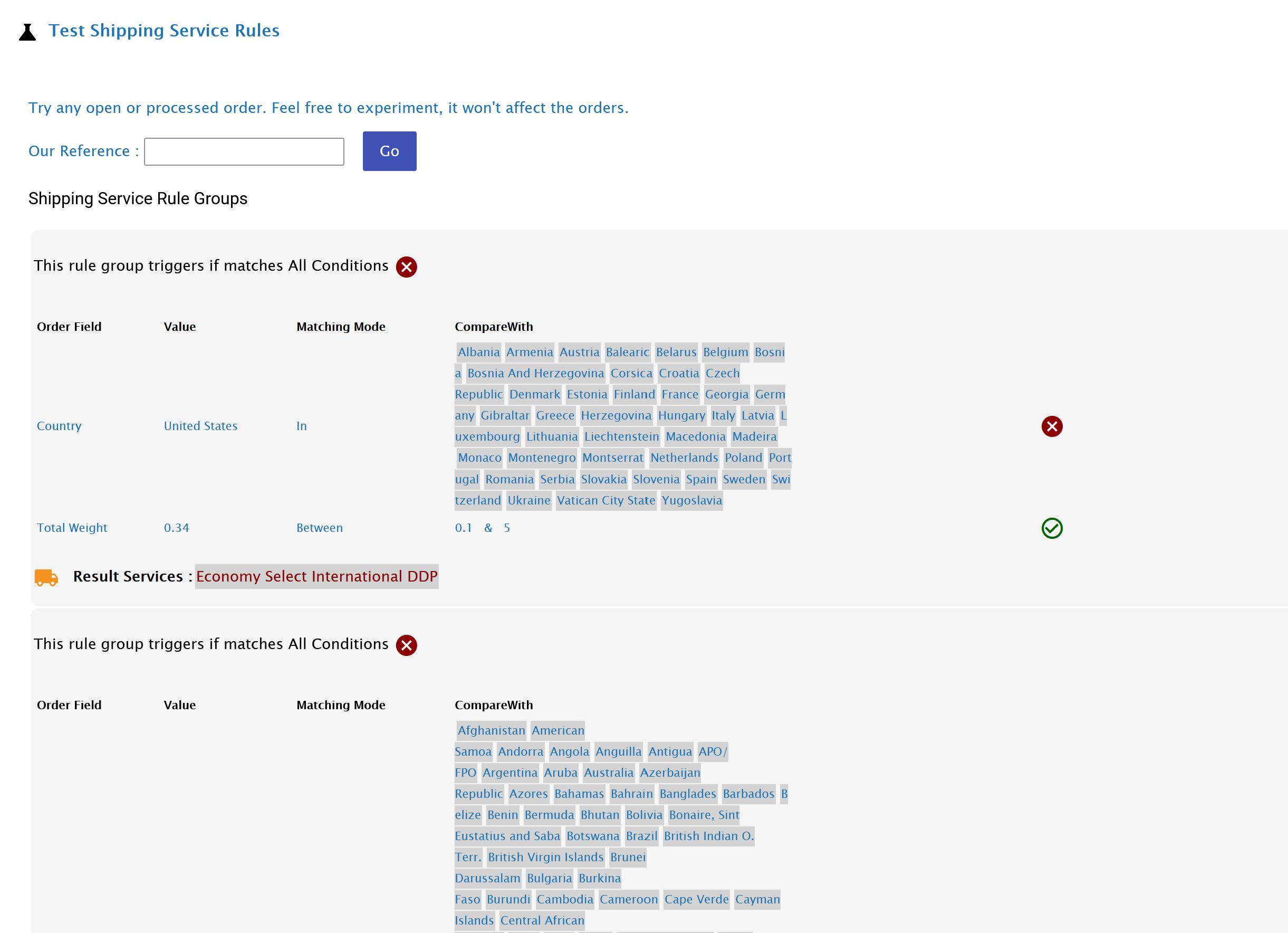
The Test Shipping Rules tool allows you to check how your current rules would apply to an existing order.
You can test an order from either the open or processed orders area. Testing does not change the order.
How to test an order
- Click Test Shipping Rules.
- Enter the order’s Our Reference.
- Click Go.
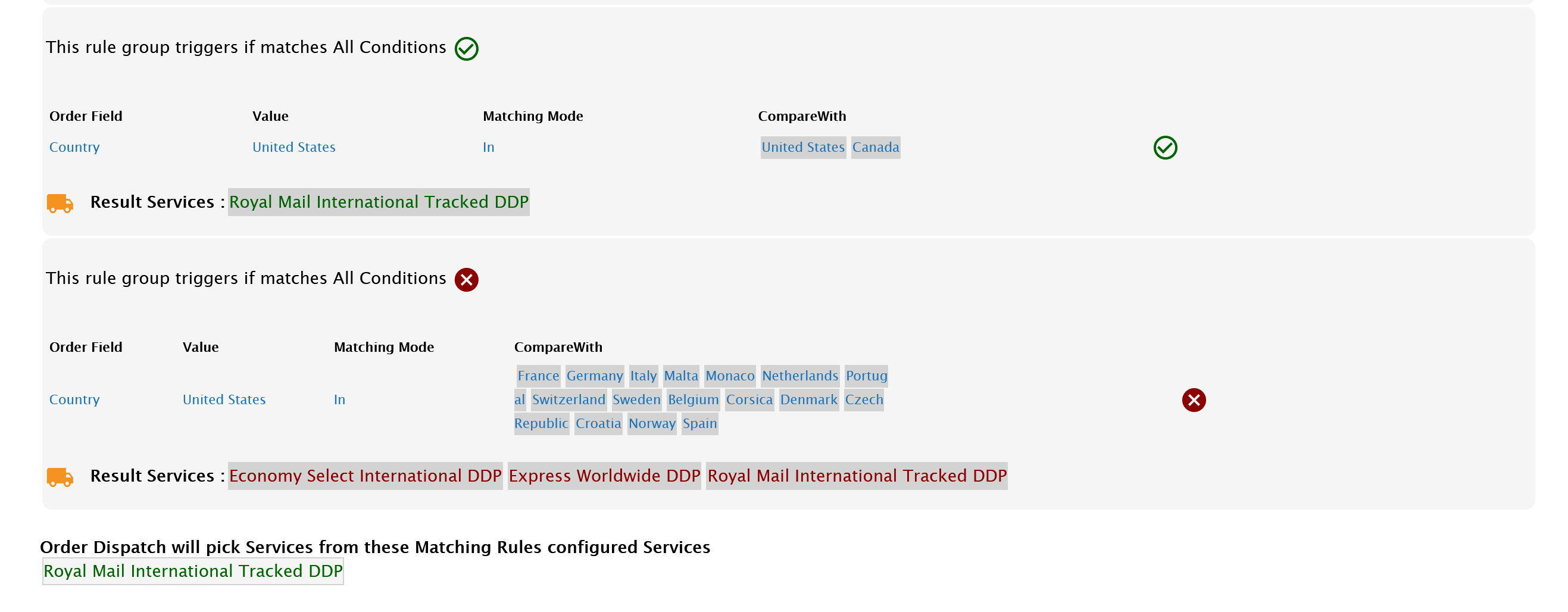
- Review each rule set shown in the results.
- Check which individual conditions passed or failed.
- Review the resulting services added by each matching rule.
The test screen shows:
- the order field being checked
- the order’s current value
- the matching mode
- the configured comparison value
- whether each condition passed or failed
- the services returned by matching rule sets
A green tick indicates that the condition matched. A red cross indicates that it did not.
Where the entire rule set matches, its services are shown as Result Services and added to the overall candidate list.
Why the testing tool is useful
Use the testing tool when:
- creating a new rule
- changing rule priority
- investigating an unexpected assigned service
- checking whether postcode or country rules work as intended
- confirming AND/OR logic
- checking whether a stop rule prevents later rules from running
- testing a real order without modifying it
It is good practice to test several different orders, including orders that should match and orders that should not.
Worked Rule Examples
The exact services available will depend on the services enabled on your account. The examples below use current service names for clarity.
Example 1: DPD for heavier UK parcels
Requirement
Use DPD Next Day for UK parcels weighing between 2 kg and 20 kg.
Rule set
Match All conditions:
- Country In United Kingdom
- Total Weight Between 2 and 20
Result:
- DPD Next Day
Why it is useful
This can prevent heavier parcels from being passed to lightweight postal services and ensures they are considered for an appropriate parcel network.
Because only one service is selected, Order Dispatch will check whether DPD Next Day can carry the order.
Example 2: Cheapest acceptable premium service
Requirement
For higher-value UK orders, use the cheapest acceptable tracked premium service.
Rule set
Match All conditions:
- Country In United Kingdom
- Total Charge Greater Than 100
Results:
- DPD Next Day
- DHL Parcel UK Next Day
- Royal Mail Tracked 24
Why it is useful
Several services may provide an acceptable tracked delivery experience. Order Dispatch can compare the valid options and choose the cheapest.
Only include Royal Mail Tracked 24 if its delivery level is genuinely acceptable for these orders.
Example 3: DDP service for selected international countries
Requirement
Use a DDP international service for parcels weighing up to 5 kg going to selected countries.
Rule set
Match All conditions:
- Country In the required destination countries
- Total Weight Between 0.1 and 5
Result:
- DHL Economy Select International DDP
Why it is useful
This can ensure eligible international orders are sent using a service where duties and taxes are handled under the required arrangement.
The list of countries should only include destinations supported by the selected service and your commercial setup.
Example 4: Route one Shopify store through selected services
Requirement
Orders from a particular Shopify store should use a defined group of services.
Rule set
Match All conditions:
- Source Equals Shopify
- SubSource Equals ACME UK Shopify
Results:
- DPD Next Day
- Royal Mail Tracked 24
Why it is useful
Different stores may have different delivery promises, customer expectations or courier pricing. The SubSource field allows rules to target one store without affecting every Shopify order.
Example 5: Specific service for an item SKU
Requirement
Orders containing a fragile product must use DPD.
Rule set
Match All conditions:
- Item SKU Equals
FRAGILE-001
Result:
- DPD Next Day
Enable:
- Stop Executing Other Rules If True
Why it is useful
Product-specific rules can prevent an order from being assigned to services unsuitable for fragile, oversized or specialist products.
The stop option prevents broader rules below it from adding other services to the candidate list.
Example 6: Handle remote postcode areas
Requirement
Use a particular service for several postcode areas that require different carrier handling.
Rule set
Match Any conditions:
- Post Code Starts With
BT - Post Code Starts With
IM - Post Code Starts With
GY - Post Code Starts With
JE
Result:
- Royal Mail Tracked 24
Why it is useful
Some courier services have restrictions, surcharges or different delivery arrangements for remote postcode areas. A postcode rule can keep these orders within a suitable service.
Before using this example, confirm that the chosen service supports the required parcel weight and destination.
Example 7: Large multi-item orders
Requirement
Send orders containing more than 20 items using a parcel carrier rather than a small-packet service.
Rule set
Match All conditions:
- Total Number Of Order Items Greater Than 20
- Country In United Kingdom
Results:
- DPD Next Day
- DHL Parcel UK Next Day
Why it is useful
Orders with many units may require larger packaging even where the individual products are lightweight. Restricting the service list can make the result more suitable for the expected parcel size.
Example 8: Preserve a premium service choice
Requirement
Where the original order requests a particular premium delivery service, only premium replacements should be considered.
Rule set
Match Any conditions:
- Shipping Service Equals Next Day
- Shipping Service Contains Express
Results:
- DPD Next Day
- DHL Parcel UK Next Day
Why it is useful
This can help prevent an order originally sold with a premium delivery promise from being moved to an economy service purely because it is cheaper.
The exact comparison value should match the service information received from the order source.
Example 9: Economy service for low-value orders
Requirement
Use economy services for low-value UK orders where the customer has paid little or no postage.
Rule set
Match All conditions:
- Country In United Kingdom
- Total Charge Less Than 25
- Postage Cost Less Than 5
Results:
- Royal Mail Tracked 48
- another suitable economy service enabled on the account
Why it is useful
This can help align delivery cost with the amount charged to the customer.
Take care not to include untracked or slower services where the customer has been promised a different delivery level.
Troubleshooting
The order has no assigned shipping service
Check:
- whether enough services are switched on
- whether the available services support the parcel weight
- whether the destination country or postcode is supported
- whether a matching rule has restricted the candidate list too severely
- whether the selected rule service has an order-value or size restriction
- whether a stop rule prevented later services from being considered
Orders with no assigned shipping service appear grey in the Open Orders screen.
Use Test Shipping Rules to see which rules matched and which services were returned.
A service is missing from the rule selection list
The service may be switched off under Allowed Services.
Only enabled services can be used in automatic shipping rules. Switch the service on before adding it to a rule.
A disabled service can still be chosen manually on an individual order.
A cheaper service was selected unexpectedly
Remember that rule results are lists of acceptable services rather than a fixed preference order.
Where several services are returned, Order Dispatch selects the cheapest valid option. It does not necessarily choose the first service displayed in the rule.
Remove any service that should not be considered for that type of order.
A rule does not match
Check:
- whether All has been selected when Any was intended
- whether every active condition contains the expected value
- exact spelling in Equals conditions
- spaces or additional text in Source, SubSource or address fields
- whether Contains or Starts With would be more suitable than Equals
- the units used for numerical comparisons
- the position of the rule set
- whether an earlier stop rule prevented it from being evaluated
Use a real order in the testing tool to inspect the values Order Dispatch is comparing.
An edited order still has its original service
Rules run when the order first enters Order Dispatch. They are not automatically rerun after later changes.
Review and assign the correct service manually after changing information such as:
- destination address
- postcode
- country
- weight
- items
- packaging
- order value
Best Practices
- Keep a broad enough selection of services enabled to cover normal and exceptional orders.
- Place the most specific and important rule sets above general ones.
- Use Stop Executing Other Rules If True for mandatory or exceptional routing.
- Select only services that are genuinely acceptable for the matching orders.
- Use multiple services where cost optimisation is appropriate.
- Use a single service where the routing requirement is strict.
- Temporarily deactivate rules rather than deleting them when testing.
- Give duplicated rules a thorough review before relying on them.
- Test both matching and non-matching orders after every major change.
- Recheck rules when courier services, weight limits or account services change.