
Creating Composite or Bundled Products
Composite products are sometimes also referred to as:
- bundles
- kits
- sets
- multipacks
- virtual products
They are useful when products are sold together but stored, picked and stock-controlled separately.
Example: Football Set
A sales channel contains a product with the SKU:
FOOTBALL-SET
Its composition in Order Dispatch is:
Component SKU | Quantity |
|---|---|
BALL | 1 |
GLOVES | 1 |
GOAL | 2 |
When an order containing one FOOTBALL-SET enters Order Dispatch, the parent item is replaced by:
- 1 × BALL
- 1 × GLOVES
- 2 × GOAL
The parent FOOTBALL-SET item is no longer visible on the order. The warehouse team sees and picks the individual physical items instead.
How Composite Products Behave
Before creating a composite, it is important to understand how Order Dispatch handles the parent and component items.
The parent item is replaced
The parent SKU is a virtual item and is not picked from stock.
When the order is created, Order Dispatch removes the parent item and replaces it with the component items in the configured quantities.
For example:
Original order line | Order lines after conversion |
|---|---|
FOOTBALL-SET × 1 | BALL × 1 |
GLOVES × 1 | |
GOAL × 2 |
The customer still receives the complete set, but the warehouse processes the actual physical items.
Quantities are multiplied automatically
Where a customer orders more than one composite product, Order Dispatch multiplies every component quantity by the ordered quantity.
For example, an order for:
FOOTBALL-SET × 2
becomes:
Component SKU | Quantity |
|---|---|
BALL | 2 |
GLOVES | 2 |
GOAL | 4 |
You only need to enter the composition for one set. Order Dispatch performs the multiplication automatically.
Composite stock is calculated from the component stock
A composite does not have an independent physical stock quantity. Its available stock is calculated from the number of complete bundles that can be made using the available component items.
Using the football set example:
Component | Stock available | Required per set | Sets possible |
|---|---|---|---|
BALL | 20 | 1 | 20 |
GLOVES | 15 | 1 | 15 |
GOAL | 12 | 2 | 6 |
Although there are enough balls and gloves for more sets, there are only enough goals to make six complete sets.
The available stock for FOOTBALL-SET will therefore be:
6
The component that allows the fewest complete sets determines the composite stock level.
If one component is out of stock
If any required component has insufficient stock to make one complete set, the available stock of the composite will be zero.
For example:
Component | Stock available | Required |
|---|---|---|
BALL | 20 | 1 |
GLOVES | 0 | 1 |
GOAL | 12 | 2 |
Because no gloves are available, no complete football sets can be made. The composite stock level will therefore be zero.
Composite products cannot be nested
A composite product cannot contain another composite product.
Every component must be a normal physical stock item.
For example, the following is not supported:
- SPORTS-PACK
- FOOTBALL-SET, where FOOTBALL-SET is itself a composite
- WATER-BOTTLE
Instead, the physical components of FOOTBALL-SET would need to be added directly to the composition of SPORTS-PACK.
Composition changes only affect new orders
When you update a composition, the new version is used for orders created after the change.
Existing orders are not changed automatically.
For example, suppose FOOTBALL-SET originally contains:
- BALL × 1
- GLOVES × 1
- GOAL × 2
An order enters Order Dispatch and is converted into those component lines.
You then update the composition to include a pump:
- BALL × 1
- GLOVES × 1
- GOAL × 2
- PUMP × 1
New orders will include the pump, but the existing order will remain unchanged.
This can be helpful because existing fulfilment work is not unexpectedly altered. However, it also means that any affected open orders may need to be reviewed and corrected manually.
Ways to Create or Manage a Composite
There are three ways to create and maintain composite products:
- Create the composition while creating a new inventory item.
- Add or edit the composition of an existing inventory item.
- Import compositions in bulk using the supplied template.
Method 1: Create a Composite While Adding a New Item
This method creates the parent inventory item and its composition in one process.
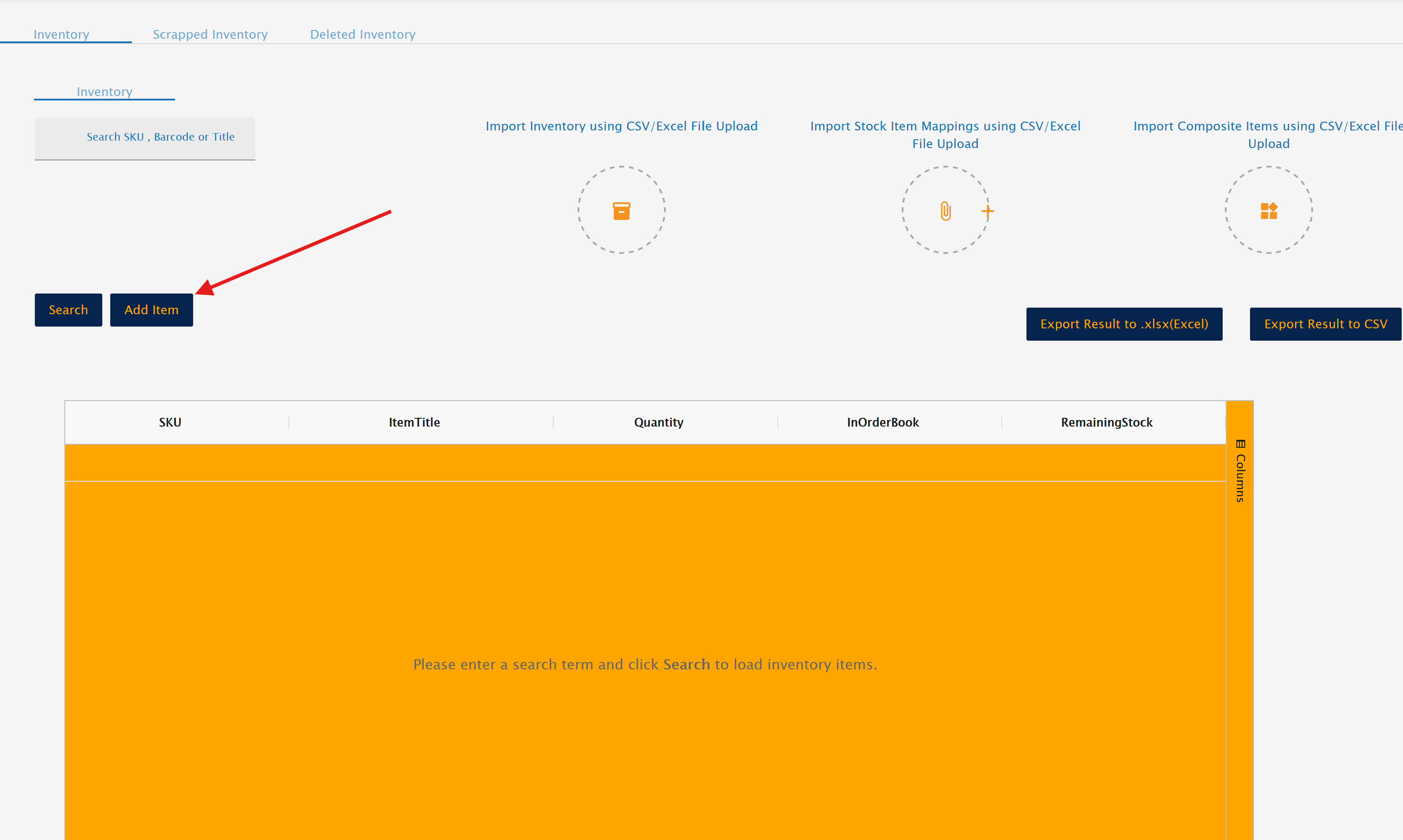
The supplied UI guide follows the route Menu → Inventory → Add Item, followed by enabling Add Composite, selecting the component SKUs and entering their quantities.
Step 1: Open Inventory
- Open the main Menu.
- Select Inventory.
- Click Add Item.
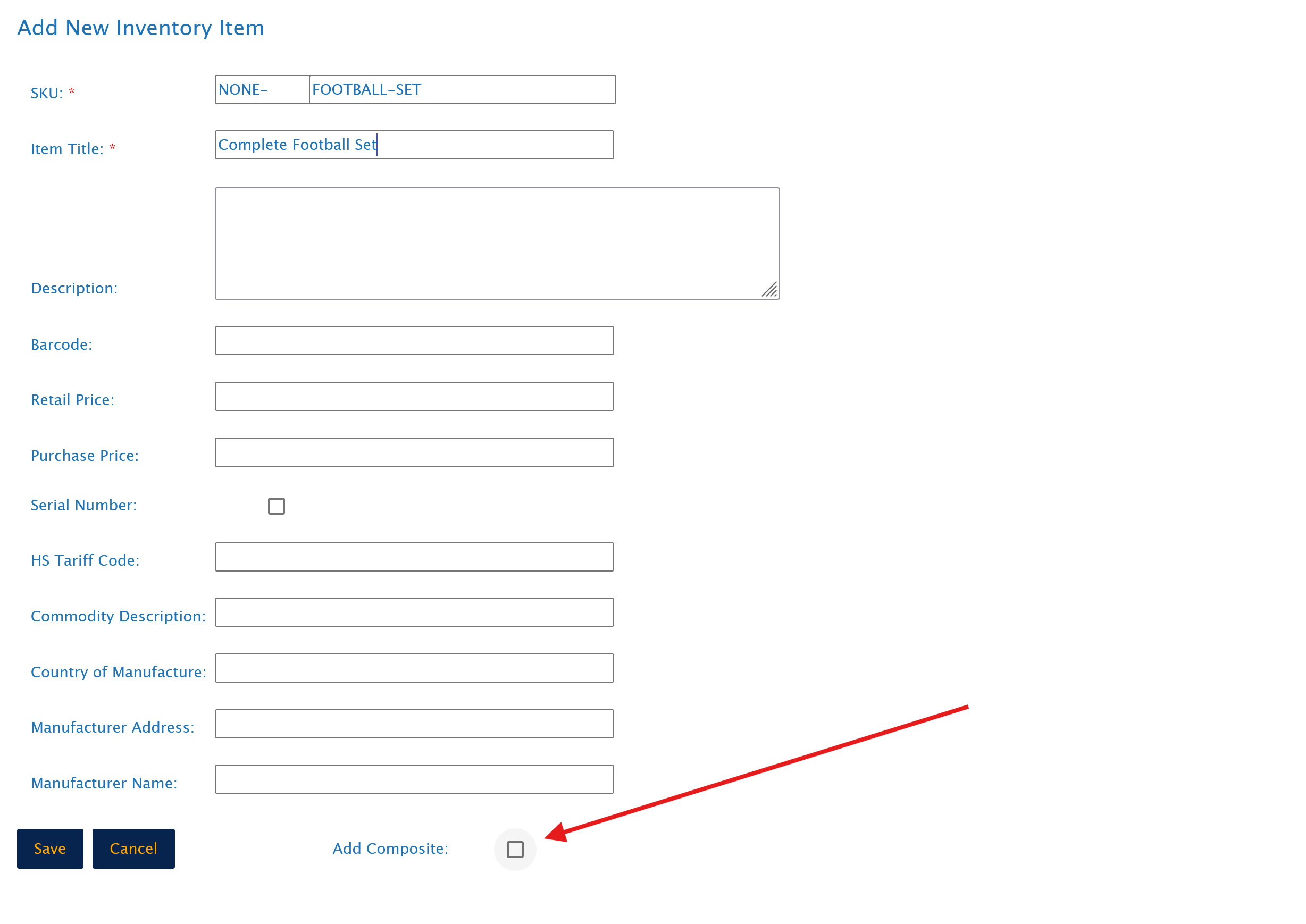
Step 2: Enter the parent item details
Enter the details of the product being sold on the sales channel.
This will be the virtual parent item, for example:
- SKU:
FOOTBALL-SET - Item Title:
Complete Football Set
Complete any other relevant item fields.
The composite item does not require its own barcode because it is not a physical item that will be picked or scanned.
Step 3: Enable Add Composite
Select the Add Composite option.
This opens the section used to search for and add the physical component items.
Step 4: Search for the component items
Use the Search SKU / Title field to find an item that should form part of the bundle.
You can search using either:
- the component SKU
- part or all of the item title
Click Search to display matching inventory items.
All component items must already exist in Inventory before they can be selected.
Step 5: Select the component
Find the required physical item in the search results and click Select.
The selected item will be added to the composition list.
Repeat the search and selection process for every component required.
For the football set, you would add:
- BALL
- GLOVES
- GOAL
Step 6: Enter the component quantities
Enter the quantity of each component required to make one complete parent product.
For example:
Component | Quantity |
|---|---|
BALL | 1 |
GLOVES | 1 |
GOAL | 2 |
The quantity should describe one complete set, not the amount currently being ordered.
Order Dispatch will multiply the quantities automatically when a customer orders more than one set.
Step 7: Review and save
Before saving, check:
- the parent SKU
- the item title
- every selected component SKU
- the quantity of each component
Click Save to create the inventory item and its composition.
Linking the parent SKU to a sales channel
The parent item must be linked to the SKU received from the relevant sales channel.
The simplest approach is normally to use the same SKU in Order Dispatch as the sales channel. For example:
FOOTBALL-SET
However, an exact SKU match is not essential where an item mapping has been created to link the sales-channel product to the correct Order Dispatch item.
The item title does not need to match the title used on the sales channel.
The important point is that the incoming sales-channel item is correctly linked to the composite parent SKU.
Method 2: Add or Edit the Composition of an Existing Item
An existing physical inventory item can be changed into a composite, and an existing composite can be updated at any time.
Opening the Composition tab
- Go to Inventory.
- Search for the parent inventory item.
- Open the item.
- Select the Composition tab.
From the Composition tab, you can:
- add component items
- change component quantities
- remove individual components
- replace the existing composition
- remove the composition completely
Turning an existing physical item into a composite
To convert an existing item:
- Open the item from Inventory.
- Go to the Composition tab.
- Search for the first component SKU.
- Add the component.
- Enter the quantity required.
- Repeat for each additional component.
- Save the changes.
Once component items have been added, the item will operate as a virtual composite for new orders.
Editing an existing composition
To change a composite:
- Open the parent item.
- Select the Composition tab.
- Add, remove or amend the component lines.
- Check the required quantity of every component.
- Save the updated composition.
Remember that the change will only affect new orders. Orders already created using the previous composition will not be updated.
Changing component quantities
The quantity represents how many units of the component are required for one parent item.
For example, changing:
GOAL × 2
to:
GOAL × 1
means that future orders for one football set will contain one goal rather than two.
An order for three sets would then contain three goals.
Removing individual components
A component can be removed from the Composition tab.
For example, to stop including gloves in the set:
- Open
FOOTBALL-SET. - Go to Composition.
- Remove
GLOVES. - Save the composition.
New orders will no longer contain gloves. Existing orders remain unchanged.
Turning a composite back into a physical item
Remove all component items from the Composition tab and save the item.
Once the entire composition has been removed, the parent is treated as a normal physical inventory item again.
Before doing this, make sure that this is intentional. Future orders will contain the parent SKU itself rather than being replaced by component items.
Method 3: Import Composite Products in Bulk
The composite import is useful when:
- creating many bundles
- adding several components to existing composites
- replacing compositions in bulk
- removing several compositions
- migrating bundle definitions from another system
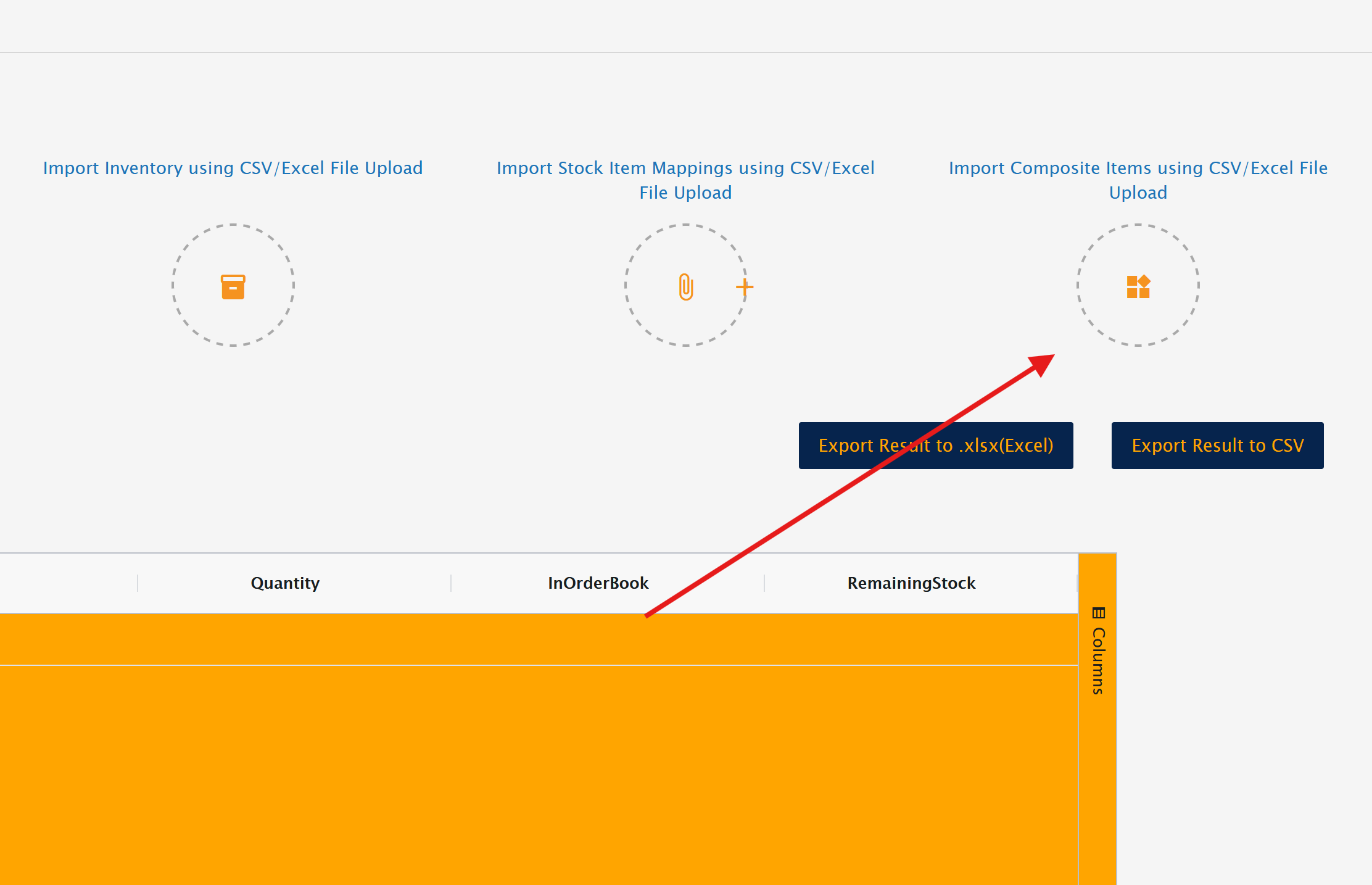
The upload option is available on the main Inventory screen.
Use the supplied composite-product import template to prepare the file.
Import File Structure
The template contains four columns:
Column | Purpose |
|---|---|
Parent SKU | The virtual composite product |
Child SKU | The physical item included in the composition |
Quantity | The number of child items required for one parent |
Action | ADD, UPDATE or DELETE |
Each component must be entered on its own row.
The parent SKU should be repeated for every component belonging to the same composition.
Example: Creating the football set
Parent SKU | Child SKU | Quantity | Action |
|---|---|---|---|
FOOTBALL-SET | BALL | 1 | ADD |
FOOTBALL-SET | GLOVES | 1 | ADD |
FOOTBALL-SET | GOAL | 2 | ADD |
Order Dispatch groups the rows using the Parent SKU and creates the composition from the associated child rows.
Several different parent SKUs can be included in the same file.
Parent and child items must already exist
For an import, both the parent SKU and every child SKU must already exist in Inventory.
The import does not create the inventory items themselves. It creates or changes the relationship between existing items.
If a parent or child SKU cannot be found, the affected row or composition will fail and will be included in the failure results.
Import Actions
The Action column controls how Order Dispatch processes the composition.
The supported actions are:
ADDUPDATEDELETE
Enter the action consistently in uppercase, as shown in the template.
ADD
ADD adds the listed child items to the parent composition.
This can be used to build a composition or add further items to an existing composition.
Example
Existing composition:
Child SKU | Quantity |
|---|---|
BALL | 1 |
GLOVES | 1 |
Import:
Parent SKU | Child SKU | Quantity | Action |
|---|---|---|---|
FOOTBALL-SET | GOAL | 2 | ADD |
The goal item is added to the composition.
Use ADD when the listed items should be added without intentionally purging and replacing the complete existing composition.
UPDATE
UPDATE clears the parent’s current composition and replaces it with the complete set of rows supplied for that parent SKU in the import.
It should be treated as a purge and replace operation.
Example
Current composition:
Child SKU | Quantity |
|---|---|
BALL | 1 |
GLOVES | 1 |
GOAL | 2 |
You want to change it to:
Child SKU | Quantity |
|---|---|
BALL | 1 |
GOAL | 2 |
PUMP | 1 |
The import must include the complete new composition:
Parent SKU | Child SKU | Quantity | Action |
|---|---|---|---|
FOOTBALL-SET | BALL | 1 | UPDATE |
FOOTBALL-SET | GOAL | 2 | UPDATE |
FOOTBALL-SET | PUMP | 1 | UPDATE |
Because GLOVES is not included in the update rows, it will no longer form part of the composition.
Important
Do not upload only the line that has changed when using UPDATE.
Every child item that should remain in the composition must be included. Anything omitted will be removed.
DELETE
DELETE removes the entire composition from the parent SKU.
The parent item is then changed back into a normal physical inventory item.
A delete row only needs to identify the parent SKU and use the DELETE action:
Parent SKU | Child SKU | Quantity | Action |
|---|---|---|---|
FOOTBALL-SET | DELETE |
DELETE does not remove individual child items in bulk.
To remove only one component, either:
- edit the composition through the Inventory UI, or
- use
UPDATEand provide the complete replacement composition without the unwanted child item
Quantity Rules
Quantities must be positive whole numbers.
Valid examples include:
1210
Invalid examples include:
0-2- blank quantities for ADD or UPDATE rows
- text values
- decimal quantities
A negative quantity does not reduce the existing composition. It will be rejected as an error.
Multiple Composites in One File
Several parent compositions can be included in the same import.
For example:
Parent SKU | Child SKU | Quantity | Action |
|---|---|---|---|
FOOTBALL-SET | BALL | 1 | ADD |
FOOTBALL-SET | GLOVES | 1 | ADD |
FOOTBALL-SET | GOAL | 2 | ADD |
GARDEN-SET | SPADE | 1 | ADD |
GARDEN-SET | FORK | 1 | ADD |
GARDEN-SET | GLOVES-GREEN | 1 | ADD |
Order Dispatch groups the rows by parent SKU and processes each composition separately.
Preparing the Import File
Before uploading, check the following:
- Every parent SKU already exists in Inventory.
- Every child SKU already exists in Inventory.
- Each child item has its own row.
- The parent SKU is repeated on every applicable row.
- Quantities are positive whole numbers.
- The action is valid.
- UPDATE rows contain the complete replacement composition.
- DELETE is only used where the whole composition should be removed.
- There are no unintended sample or test rows.
Blank rows are ignored, but it is best to remove them before uploading to keep the file clear and reduce the chance of mistakes.
The supplied example template may contain intentionally invalid test rows, such as a missing child SKU or a negative quantity. These should not be copied into a live import.
Uploading the File
- Go to the main Inventory screen.
- Select the composite-product import option.
- Choose the completed file.
- Upload the file.
- Allow Order Dispatch to process the rows.
- Review the results summary.
Reviewing the Import Results
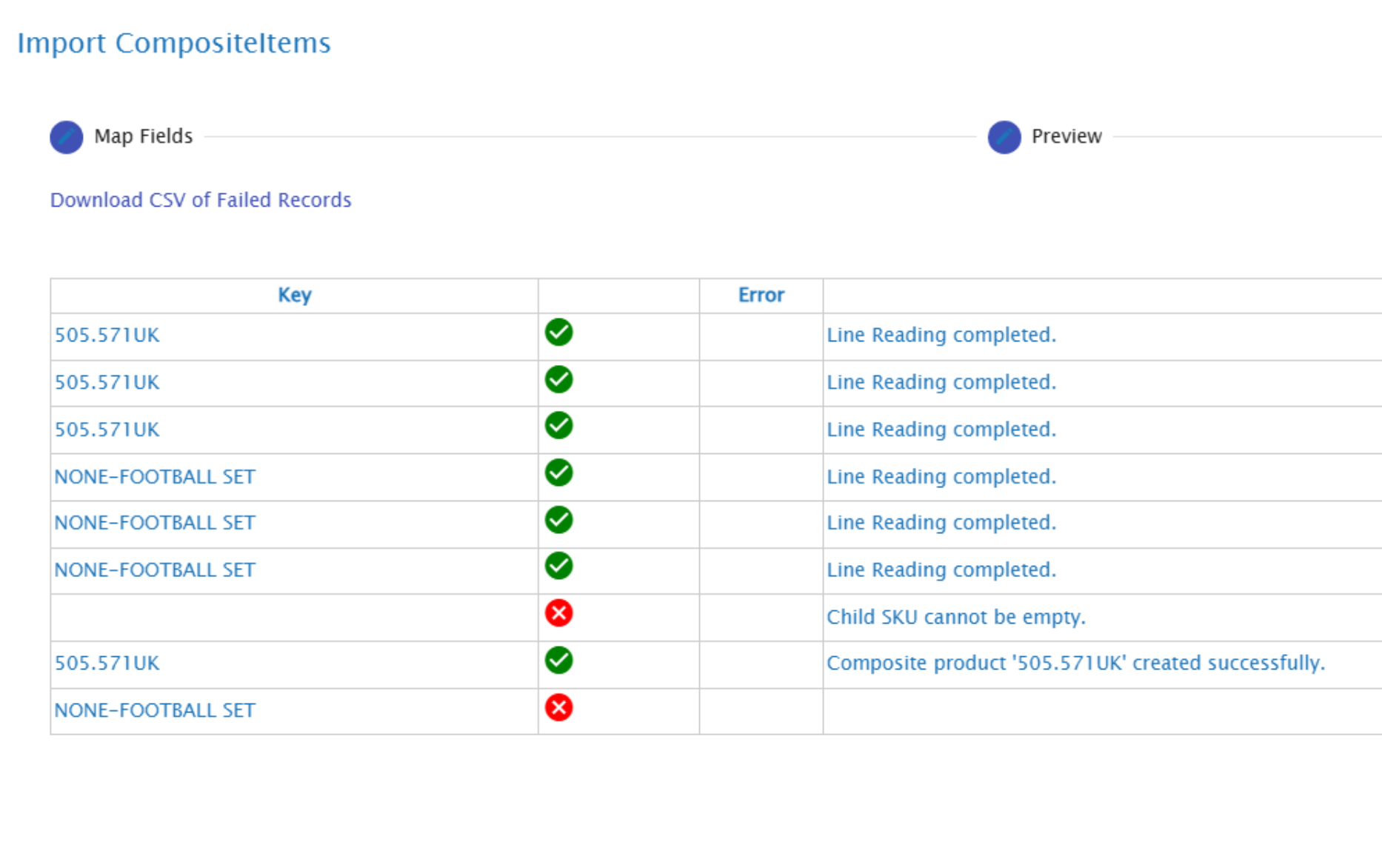
When processing is complete, Order Dispatch displays a summary of the results.
The summary shows which records were processed successfully and whether any failed.
Where failures occur, a file can be downloaded containing the unsuccessful records so they can be reviewed and corrected.
Common causes of failure include:
- parent SKU does not exist
- child SKU does not exist
- child SKU is blank
- quantity is blank
- quantity is zero or negative
- invalid action
- attempting to use a composite item as a child
- incomplete or incorrectly structured UPDATE data
Correct the failed rows and upload them again.
Common Use Cases
Product kits
A product is marketed as a single starter kit but consists of several warehouse items.
Example:
- CLEANING-STARTER-KIT
- CLOTH × 2
- SPRAY × 1
- BRUSH × 1
Gift sets
Several individually stocked products are sold together as a gift set.
Example:
- BATH-GIFT-SET
- SOAP × 2
- BATH-BOMB × 3
- GIFT-BOX × 1
Multipacks
A marketplace listing sells several units of a normal product under a separate SKU.
Example:
- BATTERY-4-PACK
- BATTERY-AA × 4
This allows the individual batteries to remain stock-controlled under their normal physical SKU.
Promotional bundles
A temporary campaign combines normal products without requiring the warehouse to preassemble or separately stock the promotional set.
Example:
- SUMMER-BUNDLE
- WATER-BOTTLE × 1
- CAP × 1
- SUNGLASSES × 1
When the promotion finishes, the composition can be removed or the parent item can be discontinued.
Products requiring packaging or inserts
Packaging and inserts can be included as components where they are maintained as physical inventory items.
Example:
- PREMIUM-GIFT
- PRODUCT-A × 1
- GIFT-BOX × 1
- MESSAGE-CARD × 1
This makes the required packing materials visible as order lines for the warehouse.
Troubleshooting
The parent SKU remains on the order
Check that:
- the item has a saved composition
- the incoming sales-channel SKU is linked to the correct parent item
- the order was created after the composition was saved
- the composition contains valid physical child items
Updating the composition will not retrospectively alter an order that already exists.
The wrong component quantities appear
Open the parent item and review the Composition tab.
Remember that quantities are entered per one parent item.
For example, if two goals are required for each set, enter 2, not the total stock quantity or the number required for a particular customer order.
Order Dispatch multiplies the component quantities by the parent order quantity automatically.
The composite stock level is lower than expected
Check the available stock and required quantity of every child item.
The composite stock is limited by the component that can produce the fewest complete sets.
A component may appear to have a reasonable stock quantity but still limit the bundle where several units are required per set.
For example, 12 goals only support six bundles where each bundle requires two goals.
The composite stock level is zero
At least one required component cannot currently make a complete set.
Check for:
- a child item with zero stock
- insufficient stock for the required component quantity
- an incorrect quantity in the composition
- a child item that has become unavailable
An import UPDATE removed items unexpectedly
UPDATE replaces the whole composition.
Any existing child item not included in the UPDATE rows is removed.
Upload another complete UPDATE containing every child item that should form part of the composition.
The import failed because a SKU was not found
Both parent and child SKUs must already exist in Inventory before the composition import is run.
Create or import the missing stock items first, then rerun the failed composition rows.
A composition change did not affect an open order
This is expected behaviour.
Composition changes only affect new orders. Existing orders retain the component lines that were generated when they originally entered Order Dispatch.
Review and amend the existing order manually where required.
Best Practices
- Use clear parent SKUs that identify the product as a set or bundle.
- Link every sales-channel listing to the correct parent SKU.
- Check component quantities carefully before saving.
- Avoid using composites as child items.
- Test a new composition with a sample order before relying on it.
- Review the calculated stock level after creating the composition.
- Use the UI for individual changes and the import for bulk maintenance.
- Treat UPDATE imports as complete replacement files.
- Download and review any failure report after an import.
- Consider existing open orders before changing a live composition.
- Keep a record of major composition changes where bundles change over time.